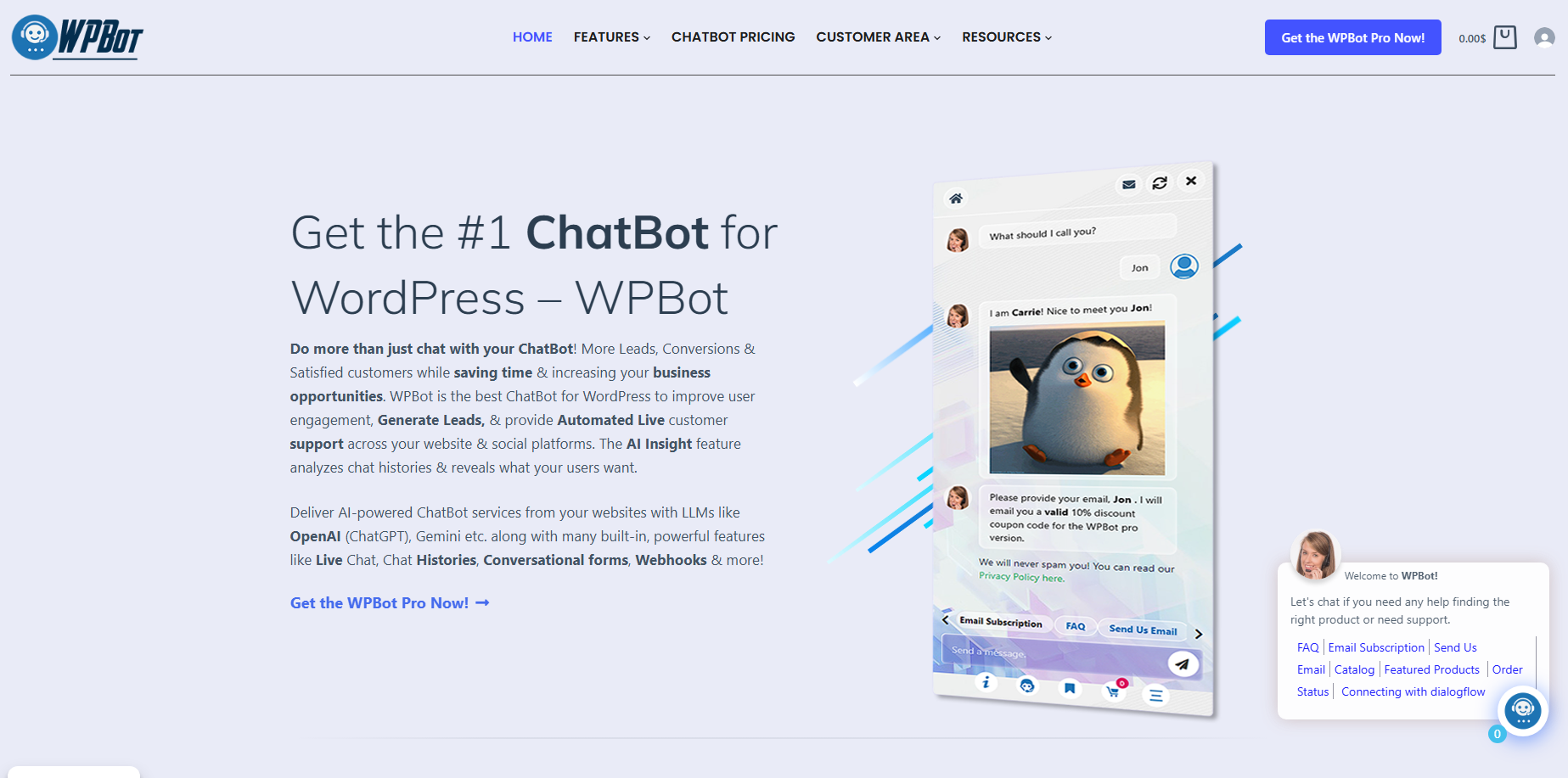
July 10, 2026UncategorizedWPBot helps web design agencies convert more website visitors into qualified leads, customer conversations, and completed WooCommerce purchases without relying on expensive monthly chatbot services. WPBot Master License gives agencies one lifetime solution that combines AI chat, Conversational Forms, Live Chat, WooCommerce automation, and agency-friendly licensing across up to 50 client websites.
Why Are Smart Web Design Agencies Moving Away from Monthly AI Chatbot Subscriptions?
Every agency owner knows the feeling.
A client asks for an AI chatbot. You compare several SaaS chatbot providers. The monthly bill starts at $40, then $90, then $300 as conversations increase.
After ten client websites, recurring costs become difficult to justify.
WPBot Master License solves a completely different problem.
Instead of renting chatbot software every month, WPBot Master License gives agencies a lifetime license that can be installed on up to 50 WordPress websites. Every new client becomes an opportunity instead of another monthly expense.
For agencies building multiple WordPress projects every month, predictable costs matter just as much as powerful features.
Why Does 2026 Demand More Than a Simple Website Chat Widget?
Visitors no longer expect websites to behave like digital brochures.
Visitors expect instant answers.
Visitors expect product recommendations.
Visitors expect AI assistance.
Visitors expect immediate support without waiting for email responses.
WPBot was built around these expectations.
Rather than acting as a simple floating chat button, WPBot becomes an intelligent communication layer across an entire WordPress website.
WPBot can:
Answer frequently asked questions
Search posts and pages
Search WooCommerce products
Collect customer information
Start live conversations
Recommend products
Recover abandoned shopping sessions
Trigger conversational forms
Connect with modern AI models
Escalate conversations to human agents
That combination makes WPBot much more valuable than a traditional chatbot.
Why Are Agencies Treating AI Chat as a Standard Website Feature?
Five years ago, AI chat was considered a premium add-on.
In 2026, many clients expect AI support before signing a web design contract.
That changes agency pricing.
Instead of charging only for website development, agencies can package ongoing customer engagement features directly into every project.
Typical agency package upgrades now include:
Traditional Website PackageWebsite Package with WPBotContact FormAI Chat AssistantFAQ PageAI Knowledge SearchProduct SearchConversational Product SearchEmail SupportLive ChatStatic Lead FormConversational FormsManual Product DiscoveryAI RecommendationsBasic WooCommerceWooCommerce Chat Automation
Every upgrade increases perceived value without dramatically increasing development time.
Why Does the WPBot Master License Fit the Agency Business Model?
Most WordPress agencies manage multiple client websites.
Recurring SaaS chatbot subscriptions create recurring operational expenses.
WPBot Master License changes the economics.
Instead of paying monthly chatbot fees for every customer, WPBot Master License provides one lifetime purchase that supports installation across multiple client websites.
For agencies managing dozens of WordPress projects, predictable licensing makes long-term planning much easier.
Some agency advantages include:
Lifetime updates
Priority support
White-label branding
Installation on up to 50 websites
OpenAI integration
Google Gemini integration
DialogFlow integration
WooCommerce integration
Live Chat
Conversational Forms
Webhook support
Multilingual capabilities
Because WPBot Master License bundles these capabilities together, agencies avoid purchasing multiple plugins to deliver similar functionality.
How Much Money Can Agencies Actually Save?
Recurring subscriptions often look inexpensive at first.
The problem appears when client numbers grow.
Consider this simplified comparison.
Agency SizeSaaS Chatbot ($49/site/month)WPBot Master License5 Client Websites$245/monthOne-Time License10 Client Websites$490/monthSame License20 Client Websites$980/monthSame License30 Client Websites$1,470/monthSame License50 Client Websites$2,450/monthSame License
The exact numbers vary depending on the SaaS provider, but the pattern remains consistent.
Recurring subscriptions grow linearly.
WPBot Master License remains a one-time investment.
That difference directly improves agency profit margins.
Why Is WPBot Easier to Sell Than Separate Marketing Tools?
Clients rarely ask for plugins.
Clients ask for business outcomes.
Clients want:
More leads
More appointments
More product sales
Better customer support
Faster responses
Lower support costs
WPBot delivers several of these outcomes inside one solution.
Instead of explaining multiple plugins, agencies can demonstrate one working customer journey.
A visitor arrives.
WPBot starts a conversation.
WPBot answers questions.
WPBot recommends products.
WPBot captures contact details.
WPBot hands the visitor to a human agent if necessary.
That workflow is much easier for clients to understand.
Why Are Conversational Forms Replacing Traditional Contact Forms?
Most website forms fail for one simple reason.
Visitors dislike filling out long forms.
Large forms create friction.
Every additional field reduces completion rates.
WPBot Conversational Forms replace static forms with natural conversations.
Instead of presenting ten input fields simultaneously, WPBot asks one simple question at a time.
The experience feels much closer to messaging than paperwork.
That small change often increases visitor engagement.
How Do WPBot Conversational Forms Keep Visitors Engaged?
Traditional forms overwhelm users.
WPBot Conversational Forms reduce cognitive load.
A conversation might look like this:
WPBot: Hello! What service are you interested in?
Visitor:Website redesign.
WPBot:Great choice. What type of business do you run?
Visitor:Dental clinic.
WPBot:How many pages does your current website have?
Visitor:Around twenty.
WPBot:Would you like a free consultation?
Visitor:Yes.
Instead of abandoning a long form halfway through, visitors naturally continue the conversation.
That psychological difference matters.
Why Do Agencies Prefer WPBot Conversational Forms for Lead Generation?
Every agency wants better-qualified leads.
WPBot Conversational Forms help collect structured information before a sales call even begins.
Common qualification questions include:
Company size
Budget range
Industry
Timeline
Required services
Existing website platform
Monthly traffic
WooCommerce usage
Marketing goals
Because WPBot collects these answers conversationally, agency sales teams begin every conversation with valuable context.
That saves time for both the agency and the client.
How Can WPBot Conversational Forms Replace Multiple Plugins?
Many WordPress websites use one plugin for contact forms, another for lead capture, another for chatbot automation, and another for AI assistance.
Managing several plugins increases maintenance complexity.
WPBot consolidates these workflows into one conversational interface.
Instead of switching between different dashboards, agencies configure lead generation inside WPBot.
That simplifies onboarding for new developers and reduces plugin conflicts.
Which Businesses Benefit Most from WPBot Conversational Forms?
Almost every service-based business collects information before making a sale.
WPBot Conversational Forms adapt naturally to different industries.
Digital Agencies
WPBot qualifies website redesign requests before scheduling consultations.
Law Firms
WPBot gathers case type, urgency, and contact information before attorney follow-up.
Medical Clinics
WPBot helps visitors request appointments while collecting preliminary details.
Educational Institutions
WPBot guides prospective students through admission inquiries.
Real Estate Companies
WPBot collects property preferences, budget, and preferred locations.
SaaS Businesses
WPBot qualifies demo requests by gathering company size, industry, and software requirements.
Each workflow can be customized without changing the conversational experience.
How Does WPBot Improve Lead Quality Instead of Just Lead Quantity?
Generating hundreds of leads means very little if most leads are unqualified.
WPBot Conversational Forms allow agencies to filter prospects before sales representatives become involved.
For example, WPBot can ask:
What is your monthly marketing budget?
Do you already have a WordPress website?
When do you plan to launch?
Are you replacing an existing website?
Do you require WooCommerce?
Those answers help agencies prioritize high-intent prospects.
Sales representatives spend more time closing deals and less time sorting through incomplete inquiries.
Why Does WPBot Create Better User Experiences Than Static Forms?
Traditional forms interrupt visitors.
WPBot continues the conversation.
Visitors remain focused because WPBot presents one question at a time, acknowledges each response, and guides users naturally toward the next step.
Instead of feeling like an administrative task, lead generation feels like a helpful conversation.
That difference explains why many agencies now position WPBot Conversational Forms as a premium feature in every WordPress project they deliver.
Why Are Visitors Leaving Your Website Before Talking to Your Team?
Many websites lose potential customers for a simple reason.
Visitors have questions, but nobody answers them in time.
A visitor waits for an email reply. Another visitor searches through several FAQ pages. Many simply close the browser and choose a competitor.
WPBot Live Chat removes that delay by making conversations immediate. Instead of forcing visitors to wait, WPBot creates a direct communication channel between customers and your support or sales team.
How Does WPBot Live Chat Turn Conversations into Sales Opportunities?
Website chat should do more than answer questions.
WPBot Live Chat helps agencies build complete customer journeys that begin with AI assistance and end with a human conversation when necessary.
A typical workflow looks like this:
WPBot greets the visitor.
WPBot answers common questions using website content or AI.
WPBot recommends products or services.
WPBot detects when human assistance is needed.
WPBot Live Chat transfers the conversation to a live agent.
The sales or support team continues the discussion without forcing the visitor to start over.
Because WPBot preserves conversation context, human agents immediately understand what the visitor already asked.
Why Does WPBot Live Chat Reduce Customer Frustration?
Customers dislike repeating the same information.
Traditional support systems often ask customers to explain their problem multiple times.
WPBot Live Chat avoids that experience by keeping the conversation connected.
Instead of restarting the interaction, WPBot passes previous messages to the support team. Human agents spend less time collecting basic information and more time solving real problems.
That creates a smoother customer experience while reducing support workload.
How Does WPBot Balance AI Automation with Human Support?
Automation should never become a dead end.
WPBot handles repetitive questions such as:
Business hours
Shipping information
Refund policies
Product availability
Pricing questions
Documentation searches
Knowledge base lookups
When a conversation becomes complex, WPBot Live Chat allows a human agent to take over.
This hybrid model gives agencies the best of both worlds.
Routine questions stay automated.
Important sales conversations remain personal.
Which Businesses Gain the Most Value from WPBot Live Chat?
Every industry benefits from faster communication, but several industries see particularly strong results.
eCommerce Stores
WPBot Live Chat helps shoppers compare products, answer shipping questions, and remove purchase hesitation before checkout.
Digital Agencies
WPBot Live Chat qualifies project inquiries before connecting prospects with a sales consultant.
Healthcare Websites
WPBot Live Chat assists patients with appointment requests, clinic information, and general inquiries while allowing staff members to handle sensitive conversations.
Educational Organizations
WPBot Live Chat helps prospective students receive immediate answers about admissions, tuition, and course availability.
Software Companies
WPBot Live Chat supports product demonstrations, onboarding questions, and subscription inquiries without overwhelming technical support teams.
Why Does WPBot Help Agencies Deliver Premium Support Without Hiring Larger Teams?
Hiring additional support staff is expensive.
Training new support agents requires time.
Managing multiple communication platforms increases complexity.
WPBot automates repetitive conversations before human involvement becomes necessary.
That means existing support teams can focus on:
High-value customers
Technical troubleshooting
Enterprise sales
Custom project discussions
Complex WooCommerce issues
Every automated conversation saves valuable staff time.
How Does WPBot Improve Customer Response Time?
Fast responses build trust.
Industry research consistently shows that response speed influences conversion rates.
WPBot answers common questions instantly instead of forcing visitors to wait minutes or hours.
Consider this comparison.
Customer Support TaskTraditional WebsiteWebsite Using WPBotFirst ResponseEmail queueInstant AI responseFAQ SearchManual browsingConversational searchProduct DiscoveryNavigation menusAI-guided recommendationsSales QuestionsContact formImmediate conversationHuman EscalationSeparate support ticketIntegrated Live ChatVisitor ExperiencePassive browsingInteractive engagement
Every faster interaction creates another opportunity to keep visitors engaged.
Why Is WooCommerce Retargeting Becoming Essential in 2026?
Traffic is expensive.
Whether visitors arrive through Google Ads, Facebook Ads, SEO, or email campaigns, acquiring each visitor costs money.
The biggest problem is not attracting visitors.
The biggest problem is losing visitors before they purchase.
WPBot WooCommerce Retargeting helps agencies reconnect with shoppers before those sales disappear.
What Does WPBot WooCommerce Retargeting Actually Do?
Most online shoppers do not purchase during their first visit.
Some visitors compare prices.
Some visitors become distracted.
Some visitors simply need another reminder.
WPBot WooCommerce Retargeting helps agencies re-engage those visitors through intelligent conversations and personalized recommendations.
Instead of ending the customer journey when someone leaves a product page, WPBot continues nurturing purchase intent.
How Does WPBot Recover More Abandoned Shopping Carts?
Cart abandonment is one of the largest revenue leaks for WooCommerce stores.
A visitor may:
Add products to the cart.
Browse shipping options.
Compare competitors.
Leave without purchasing.
WPBot recognizes these moments and encourages shoppers to continue.
Depending on the store configuration, WPBot can:
Remind shoppers about products left in the cart.
Answer last-minute purchase questions.
Recommend complementary products.
Offer additional product information.
Guide visitors back to checkout.
Reducing hesitation often produces better conversion rates than simply increasing website traffic.
Why Does WPBot Recommend Products More Naturally?
Traditional product recommendation widgets display generic “Related Products.”
Many shoppers ignore them.
WPBot recommends products inside a conversation.
For example:
Visitor: I need running shoes for beginners.
WPBot: Here are three beginner-friendly options based on comfort and budget.
Visitor: Which one works for long-distance running?
WPBot: This model provides additional cushioning for extended runs.
The recommendation feels personal instead of automated.
That conversational approach encourages shoppers to continue exploring products.
How Does WPBot Increase Average Order Value?
Selling one product is good.
Selling complementary products is even better.
WPBot supports intelligent upselling and cross-selling through conversation.
Examples include:
Laptop → Laptop Bag
Smartphone → Screen Protector
Camera → Memory Card
Coffee Machine → Coffee Beans
Gaming Console → Extra Controller
Instead of interrupting the customer journey, WPBot introduces relevant suggestions at the right moment.
That creates a more natural shopping experience while increasing average order value.
How Does WPBot Reduce Product Search Friction?
Large WooCommerce stores often contain thousands of products.
Traditional navigation becomes difficult.
Customers may abandon their search before finding the right item.
WPBot simplifies discovery through conversational product search.
Instead of navigating several menus, visitors can simply ask:
Show me waterproof hiking boots.
Find office chairs under $200.
Recommend gifts for photographers.
Compare wireless keyboards.
Display red dresses in medium size.
WPBot transforms product search into a conversation.
How Can Agencies Package WPBot as a Premium WooCommerce Service?
Agencies often struggle to differentiate themselves from competitors.
Every agency can install WooCommerce.
Fewer agencies deliver intelligent shopping experiences.
Many agencies now include WPBot inside premium WooCommerce packages.
Example service tiers:
PackageIncluded FeaturesStarterWPBot AI Chat, FAQ Search, Product SearchGrowthStarter + WPBot Conversational Forms + Live ChatProfessionalGrowth + WPBot WooCommerce Retargeting, AI Product Recommendations, AnalyticsEnterpriseProfessional + White Label, Multiple AI Models, Webhooks, CRM Integrations
Each upgrade creates recurring value without rebuilding the website.
What Does the ROI Look Like for a Typical Agency Client?
Many agency owners ask a simple question:
“Will adding WPBot actually increase revenue?”
A realistic example illustrates the potential.
Scenario
Monthly visitors: 20,000
Conversion rate: 2.0%
Average order value: $85
Monthly revenue:
20,000 × 2.0% × $85 = $34,000
Now assume WPBot helps improve conversion from 2.0% to 2.4% by reducing hesitation, improving customer support, and assisting product discovery.
New monthly revenue:
20,000 × 2.4% × $85 = $40,800
Monthly revenue increase:
$6,800
Annual revenue increase:
$81,600
Actual results depend on traffic quality, product pricing, customer behavior, and website optimization, but even modest improvements in conversion rate can produce meaningful business outcomes.
Why Does WPBot Help Agencies Build Long-Term Client Relationships?
Many agencies earn money only during website development.
That project eventually ends.
WPBot creates opportunities for ongoing optimization.
Clients often request:
New conversational workflows
AI prompt improvements
Additional lead qualification
WooCommerce optimization
CRM integrations
Analytics reviews
Knowledge base expansion
Seasonal campaigns
Instead of completing a project and moving on, agencies continue improving WPBot as client businesses grow.
That ongoing relationship supports recurring service revenue while delivering continuous value to clients.
Why Are More Agencies Standardizing Every WordPress Build Around WPBot?
Successful agencies rely on repeatable systems.
Every custom solution increases maintenance time.
Every unfamiliar plugin increases developer training.
WPBot provides a consistent conversational framework across service websites, WooCommerce stores, educational platforms, healthcare websites, membership portals, and corporate WordPress projects.
By standardizing on WPBot, agencies reduce implementation time, simplify staff training, and deliver a familiar experience across every client website.
Why Do Successful Agencies Build Repeatable Systems Instead of One-Off Websites?
The fastest-growing WordPress agencies rarely reinvent every project.
Instead, successful agencies standardize the tools, workflows, and automation they deploy across every client website. WPBot Master License fits naturally into this strategy because WPBot provides the same conversational foundation for business websites, WooCommerce stores, educational portals, healthcare websites, membership platforms, and corporate WordPress installations.
A repeatable system reduces onboarding time for developers, simplifies maintenance, and creates predictable project delivery.
How Does WPBot Fit into a Modern Agency Workflow?
A modern agency does much more than design pages.
Clients expect lead generation, AI automation, customer support, analytics, and sales optimization from day one. WPBot allows agencies to build these capabilities into every WordPress project instead of treating them as expensive custom development.
A typical implementation workflow looks like this:
Project PhaseAgency ActivityWPBot ContributionDiscoveryUnderstand client goalsWPBot identifies required conversation flowsDesignBuild website UIWPBot conversation widget complements the interfaceDevelopmentConfigure WordPressWPBot integrates with AI models, WooCommerce, and formsContentPublish pages and FAQsWPBot indexes website content for conversational searchLaunchQuality assuranceWPBot tests conversation paths and lead captureGrowthContinuous optimizationWPBot improves conversations using analytics and customer feedback
This repeatable workflow helps agencies launch projects faster without sacrificing quality.
Why Does WPBot Reduce Long-Term Maintenance Costs?
Every additional plugin introduces another update cycle.
Every extra plugin increases the possibility of compatibility issues.
WPBot combines multiple customer engagement features into one solution, allowing agencies to reduce plugin sprawl while simplifying future maintenance.
Instead of managing separate plugins for AI chat, lead forms, live chat, product recommendations, and conversational search, developers can manage these functions through WPBot.
A streamlined plugin stack also makes troubleshooting easier after WordPress core updates.
How Can Agencies Build Reusable WPBot Templates?
Experienced agencies avoid configuring every client website from scratch.
WPBot supports reusable conversation structures that developers can adapt for different industries.
Common reusable templates include:
Website Design Consultation
WPBot asks:
What type of website do you need?
What is your estimated budget?
What is your preferred launch date?
Do you currently use WordPress?
Would you like a free consultation?
WooCommerce Store
WPBot guides shoppers through:
Product discovery
Product comparison
Shipping questions
Payment methods
Cart assistance
Checkout support
Healthcare Website
WPBot collects:
Appointment requests
Department selection
Doctor preferences
Contact information
General clinic inquiries
Law Firm
WPBot qualifies visitors by asking:
Practice area
Case urgency
Preferred consultation date
Contact details
These reusable workflows reduce implementation time across future projects.
How Does WPBot Support Multi-Client Agency Operations?
Agency growth creates operational challenges.
Managing five websites differs greatly from managing fifty.
WPBot Master License allows agencies to deploy a consistent conversational experience across multiple client websites while maintaining separate configurations for each business.
For example:
Client A uses WPBot for lead generation.
Client B uses WPBot for WooCommerce sales.
Client C uses WPBot for appointment scheduling.
Client D uses WPBot for technical documentation.
Client E uses WPBot for multilingual customer support.
Each website serves different business goals while relying on the same trusted solution.
Why Should Agencies Integrate WPBot with Modern AI Models?
AI capabilities continue to evolve rapidly.
Rather than limiting agencies to a single provider, WPBot supports integration with several modern AI services, allowing developers to choose the model that best matches each client’s requirements.
Common use cases include:
Customer support automation
Content assistance
Product recommendations
FAQ generation
Technical documentation search
Sales conversations
This flexibility gives agencies room to adapt as AI technology changes.
How Does WPBot Work Alongside Existing WordPress Plugins?
Most client websites already rely on established WordPress tools.
WPBot complements existing workflows rather than replacing the entire technology stack.
Typical agency combinations include:
Existing PluginWPBot EnhancementWooCommerceConversational shopping assistanceElementorAI-powered visitor engagementWPFormsConversational lead qualificationKnowledge Base PluginsConversational article searchCRM IntegrationsLead collection and routingMembership PluginsPersonalized member assistance
Because WPBot integrates with common WordPress ecosystems, agencies can extend existing websites without rebuilding them.
How Can Agencies Measure WPBot Success?
Clients rarely care about chatbot technology alone.
Clients care about measurable business outcomes.
Agencies should monitor key performance indicators before and after deploying WPBot.
Recommended KPIs include:
Lead conversion rate
Conversation completion rate
Average response time
Qualified leads generated
Average order value
Cart recovery rate
Customer support resolution time
Bounce rate reduction
Pages viewed per session
Live chat escalation rate
Tracking these metrics demonstrates the business impact of WPBot over time.
Why Does WPBot Improve Client Retention for Agencies?
Winning a website project is valuable.
Keeping the client for years is even more valuable.
WPBot creates ongoing opportunities for optimization because conversational experiences evolve alongside the client’s business.
Agencies can offer recurring services such as:
Conversation flow optimization
AI prompt refinement
Knowledge base updates
Seasonal promotional campaigns
WooCommerce recommendation improvements
Analytics reviews
Lead qualification enhancements
AI model upgrades
These ongoing improvements strengthen long-term agency-client relationships while generating recurring service revenue.
What Best Practices Should Developers Follow When Deploying WPBot?
A successful WPBot deployment starts with thoughtful planning rather than enabling every feature at once.
Developer best practices include:
Define clear conversation goals before creating chat flows.
Use concise questions inside WPBot Conversational Forms to reduce abandonment.
Maintain an updated knowledge base so WPBot provides accurate responses.
Configure Live Chat escalation rules for complex customer inquiries.
Review AI responses regularly to improve quality and consistency.
Test WooCommerce conversations after product updates.
Monitor analytics to identify unanswered customer questions.
Keep WordPress, themes, and plugins updated to maintain compatibility and security.
Following these practices helps agencies deliver reliable conversational experiences across client websites.
Frequently Asked Questions (FAQ)
Final Thoughts: Why Are More Agencies Standardizing on WPBot in 2026?
Building beautiful WordPress websites is no longer enough.
Clients expect websites to answer questions instantly, qualify leads automatically, recommend products intelligently, recover abandoned carts, and provide immediate access to human support. Delivering those capabilities separately often means purchasing multiple plugins, managing several dashboards, and paying recurring subscription fees.
WPBot Master License gives web design agencies a different path.
Instead of assembling a collection of disconnected tools, WPBot combines AI-powered conversations, Conversational Forms, Live Chat, WooCommerce engagement, knowledge base search, multilingual capabilities, webhook integrations, and modern AI connectivity into one WordPress-native solution.
For agencies managing multiple client websites, WPBot Master License offers another important advantage: a scalable licensing model. A single lifetime license can support up to 50 WordPress websites, making it easier to standardize development workflows, reduce software costs, and maintain a consistent client experience across every project.
The long-term value extends beyond the initial website launch.
Every WPBot deployment creates opportunities for ongoing optimization through improved conversation flows, AI prompt refinement, WooCommerce enhancements, knowledge base updates, and analytics-driven improvements. Those continuous enhancements help agencies build stronger client relationships while creating recurring service opportunities.
As AI becomes a standard expectation rather than a premium feature, agencies that adopt repeatable conversational experiences will be better positioned to compete.
For many WordPress professionals in 2026, WPBot Master License is no longer just another chatbot plugin—it is a practical agency toolkit for delivering smarter websites, more efficient customer engagement, and sustainable business growth. [...]